Jason
Bejot

I’m an award-winning design and technology leader with nearly two decades of experience driving innovation at world-renowned companies like Disney, Amazon, and Rocket Companies. As a passionate technologist and inventor, I specialize in crafting visionary strategies that merge emerging technologies with human-centered design to solve complex challenges and create impactful solutions.


Let's do something amazing together.
From leading groundbreaking AI initiatives to designing enterprise systems that redefine workflows, my work consistently focuses on delivering value through thoughtful innovation. Whether you’re looking to transform your business with cutting-edge technology or explore new creative possibilities, I’m here to help you navigate the intersection of people, design, and technology.
 Revolutionizing the Home Buying JourneyRocket CompaniesBuying a home is complex, difficult to understand, and involves a lot of people. I established Rocket Mortgage's vision to revolutionize the entire home buying journey — from getting rates, to closing, and beyond. Powered with AI, it decomplexifies the process and sets every homebuyer up for success.
 Personalizing AlexaAmazonEveryone expects a voice assistant to be personal and I literally wrote the book on how to achieve that at scale — from technical components, guidelines, patterns, and best practices. Since 2019, every personalized Alexa experience has been influenced by my work.Read the case study
 Pioneering AI InteroperabilityAmazonGetting Alexa with Cortana to work together was no small feat. The bigger feat was shaping Amazon's vision on how to seamlessly connect all the voice assistants.Read the case study
 Alexa ProfileAmazonUshering in voice assistant personalization with the launch of the Alexa Profile. A paradigm shift for the industry and the first person-level profile across Amazon and the landscape of voice assistants.Read the case study
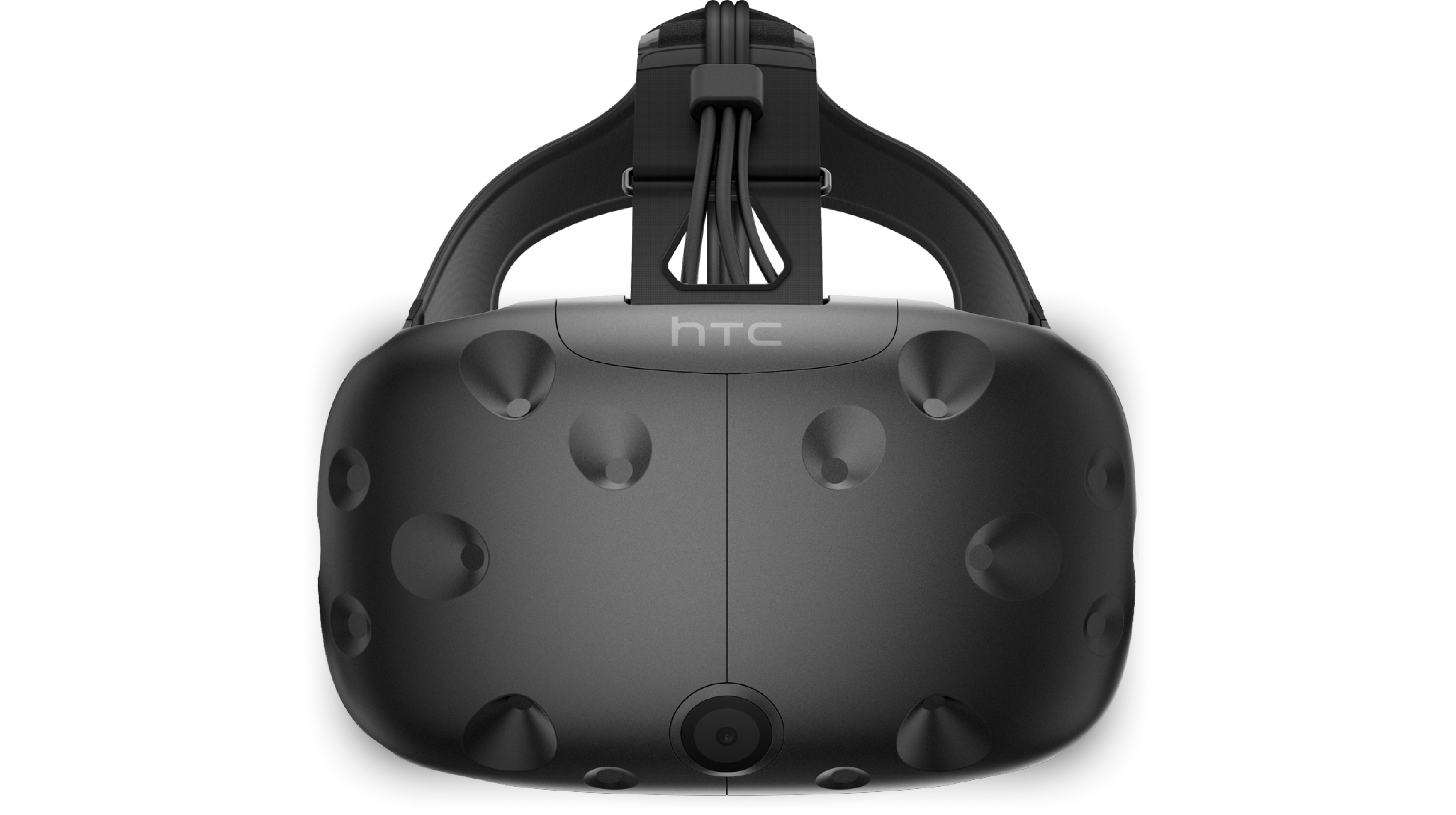 Filmmaking for Virtual RealityWalt Disney StudiosShowcasing VR capabilities and toolsets for filmmakers with a multi-platform VR experience featuring an end-to-end product experience across physical assets, mobile, and web.Read the case study
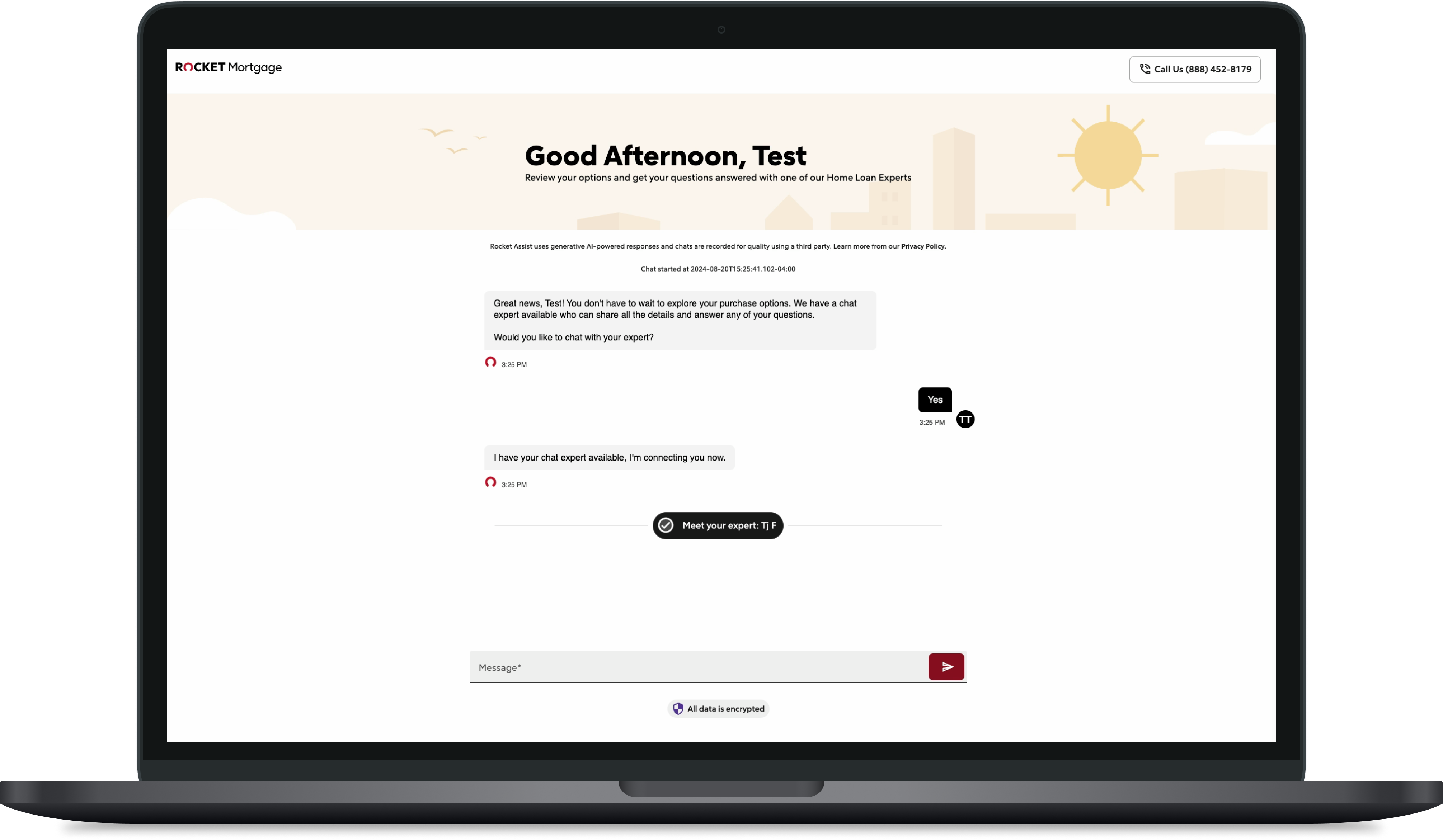 Conversational Lead FunnelRocket CompaniesRethinking the lead form to include AI, chat, and personalization. Significantly improving the experience and directly increasing lead conversion and revenue.Read the case study
There's no telling what we could accomplish together.
Evolve Your Design Practice
Great products don't get remembered for the elegance of their tech stack or the efficiency of their agile ceremonies, they get remembered for how they make people feel. I can help you build a world-class design practice.
Visioneering
A vision is more than just few words in a deck, it's a story of the future you want to make real. It determines what you work backwards from, guiding every decision. Whether it's a product, line of business, or for your company I can help define your vision.
Going 0-to-1
Getting off the ground is sometimes the hardest step. Having launched 100's of products and led multiple R&D initiatives, I can help you quickly launch, learn, and iterate your next project.
Conversational AI
LLM's are like a lump of clay, they need to be molded into shape so they can offer durable, measurable value. As a recognized conversational AI expert I can help create innovative conversational experiences.
Holistic Experiences
The companies that get repeat business are the ones that design the experience even when someone isn't actively using their app or site. I can help craft industry-defining holistic user experiences.
Emerging Technologies
New tech is really exciting but few companies know how to effectively experiment with it or derive value. With my proven track record of doing just that, I can help apply emerging tech to your business.
Clarity From Ambiguity
Big problems are hard. Ambiguity is uncomfortable. Are you stuck in endless churn? Maybe you're spending more effort debating than you are shipping. I can help your business find clarity from ambiguity.
And much more
The future is just waiting to be discovered.